
Product Facts
- Product Name
- B&D Smart Garage Door Opener with WiFi Control
- Availability
- In Stock
- Condition
- New
- Category
- Home & Garden > Smart Home Security Systems
- Seller
- BnD Garage Doors
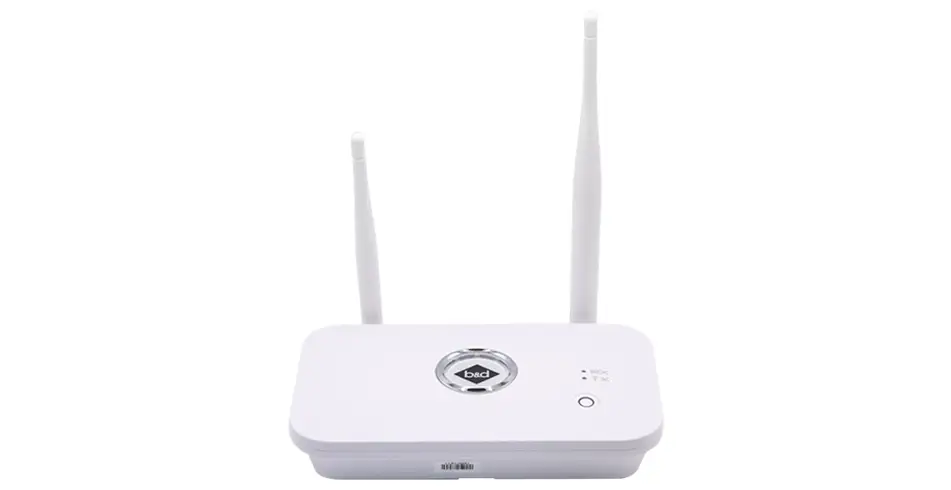
B&D Smart Garage Door Opener with WiFi Control
A smart garage door solution that combines B&D's best-selling roller and sectional garage doors with an intelligent cellular or WiFi garage door opener. Control your door from anywhere using your smartphone, with features including remote access, voice control via Google Home or Apple Siri, activity logging, multi-user access management, auto-close timers, and real-time notifications. Compatible with iOS and Android devices.
Making Your B&D Smart Hub Work for the Whole Family
Important: The Smart Hub must be connected to power at all times. Do not disconnect power after setup.
Your B&D Smart Hub (Part Number MC0006) changes how your family controls and monitors your garage door. It's more than just a remote – it's a connected home security solution that gives you peace of mind through smart access management. When multiple family members need to operate your garage door remotely, setting up proper access controls keeps everyone safe and secure while making life more convenient.
Traditional garage door remotes are simple – you either have one or you don't. The Smart Hub's WiFi-enabled design offers something better: precise digital access control. As the primary account holder, you can invite family members, see exactly when they use the door through activity logs, and remove access instantly without collecting physical remotes. This comes in handy for households with teenage drivers learning responsibility, elderly family members who need monitored access, or situations where you need to grant temporary access and later revoke it.
Your Smart Hub connects to your existing B&D Controll-A-Door® opener (manufactured after May 1st, 2016) and works through your home WiFi network, creating a cloud-based control system you can access through iOS and Android devices. This setup enables the multi-user functionality that makes smart garage systems so much more capable than conventional remote-based access.
Getting Your Primary Account Set Up
Before you invite family members, you'll need to complete the initial Smart Hub installation and create your primary account. This foundational step gives you the administrative control necessary for managing everyone's access.
Getting Your System Configured
Connect your Smart Hub unit (MC0008) to your garage door opener following the manufacturer's installation guide. You'll need a stable WiFi connection with internet access – the quality of this connection directly affects how reliably the multi-user access works. Position the hub where your WiFi signal is strong, because signal problems can cause delayed notifications and failed remote commands that affect everyone in your household.
Download the B&D Smart Hub application from your device's app store and create your primary account. This account automatically gets full administrative privileges, including the exclusive ability to invite users, adjust permissions, and access complete system logs. Use a secure email address that only you control – this account is essentially the master key to your garage access system.
During setup, take care with your notification preferences. As the administrator, you'll receive alerts not just for your own actions but also for what family members do once you add them. Setting up appropriate notifications now prevents alert overload while keeping you informed about what matters.
Keeping Your Admin Credentials Secure
Your primary account has the highest security level in your access system. Enable two-factor authentication if the B&D application supports this feature. Use a strong, unique password that's different from your other household accounts. Store these credentials securely and avoid sharing them with family members who'll receive their own accounts.
Document your administrative login information in a secure location that's accessible to your spouse or co-administrator if appropriate. In emergencies where you need to make immediate access changes, having backup access to the primary account prevents lockout scenarios.
Adding Family Members to Your System
The B&D Smart Hub application has an invitation system that lets you grant access to family members without sharing your main account credentials. This approach maintains security boundaries while enabling convenient multi-user operation.
Finding the User Management Tools
Within the Smart Hub application, navigate to the settings or account management section. The exact menu structure varies by application version, but look for options labelled "User Management," "Family Sharing," "Invite Users," or similar. This interface shows all currently authorised users and gives you controls for adding new members.
Before sending invitations, make sure each family member has their own email address or mobile phone number. The system needs unique contact information for each user to maintain individual activity tracking and access control. Shared email addresses compromise the audit trail that makes multi-user systems valuable for security.
Sending and Managing Your Invitations
Select the option to add or invite a new user. Enter your family member's email address or phone number as prompted. The system sends an invitation message with a unique link or code that they'll use to create their account.
Invitations typically expire after a set period (commonly 48–72 hours) to prevent unauthorised access if the invitation message gets intercepted or forwarded. If your family member doesn't accept the invitation within this window, you'll need to resend it through the administrative interface.
When the invited user receives the message, they'll download the B&D Smart Hub application (if they haven't already) and follow the registration process. Their account automatically links to your garage door system with the permission level you've assigned. They don't need to do anything with the Smart Hub hardware – all access is granted digitally through the cloud-based system.
Making Sure the New User Is Set Up Properly
After a family member completes their account setup, check that their access appears in your user management interface. Test their ability to control the garage door by having them try to open or close it while you watch both the physical door and the activity log entry. This confirmation step makes sure the invitation process worked correctly and the new user understands how to operate the system.
Setting the Right Permission Levels for Each Family Member
Not everyone in your household needs identical access. The B&D Smart Hub system lets administrators assign different permission levels that reflect each user's needs and their role in your household security.
Understanding Your Permission Options
Smart garage systems typically offer two to three permission levels, though the exact structure depends on your B&D application version. The most common configuration includes:
Full Control Access gives users the ability to open and close the garage door anytime, receive status notifications, and view the door's current state. This level suits adult family members who need unrestricted access for daily use. However, full control users can't invite additional users, modify other members' permissions, or access administrative settings – those capabilities remain exclusive to you as the primary account holder.
Monitor-Only Access is a restricted permission that lets users view the garage door's current status (open or closed) and receive notifications about door activity, but prevents them from remotely opening or closing the door. Monitor-only access works well for family members who need security awareness without operational control – for example, a spouse who wants to know when teenagers arrive home but doesn't personally need to operate the door.
Scheduled Access (available on some systems) supports time-restricted permissions where users can only operate the door during specified hours. This feature helps parents establish boundaries for teenage drivers who should only access the garage during approved times. Outside the permitted schedule, the user's access automatically reverts to monitor-only mode or becomes completely inactive.
Choosing Appropriate Permissions
When adding each family member, select the permission level that matches their role in your household. Consider these factors:
Age and responsibility matter. Younger family members may need scheduled or monitor-only access until they demonstrate consistent responsibility with home security.
Daily routines play a role too. Family members who regularly arrive home when no one else is there need full control access for practical reasons. Those who typically arrive when others are home may work fine with monitor-only permissions.
Security awareness counts. Think about each family member's track record with security practices like locking doors, arming alarm systems, and following household protocols. Users who frequently forget security measures may need more restrictive permissions to prevent leaving the garage door open.
Adjusting Permissions as Things Change
Permission levels should evolve as your family's circumstances change. The administrative interface lets you adjust any user's access level without removing and re-inviting them. Navigate to the user management section, select the family member whose permissions need adjustment, and choose the new access level.
Common scenarios requiring permission changes include teenagers demonstrating increased responsibility (upgrade from scheduled to full access), temporary restrictions during disciplinary periods (downgrade from full to monitor-only), or seasonal adjustments when family members' schedules change.
After modifying permissions, communicate the change directly to the affected family member. They'll notice the altered capabilities when they next use the application, and letting them know ahead of time prevents confusion or frustration.
Keeping Track of Activity with Your System Logs
The B&D Smart Hub maintains a digital record of all garage door operations, creating an audit trail that enhances your household security and accountability. Understanding how to access and interpret this activity log is a critical part of managing multiple users.
Accessing Your Activity Records
Within the Smart Hub application, locate the activity log, history, or events section. This interface displays a chronological list of garage door operations, typically showing:
- Date and time of each opening or closing event
- Which user initiated the action (or if it was triggered by a physical remote/wall button)
- Whether the command executed successfully
- Current door status after each event
The activity log updates in near-real-time, depending on your WiFi and mobile connection quality. Refresh the log view to see the most recent events if you're monitoring ongoing activity.
Making Sense of Your Activity Data
Each log entry gives you context for understanding your household access patterns. User-attributed events show which family member opened or closed the door, so you can verify that access happens according to household rules and schedules. Events marked as "manual" or "physical control" indicate someone used a traditional transmitter or wall button rather than the smartphone application.
Pay attention to unexpected patterns that may signal security concerns: door operations during unusual hours, frequent opening/closing cycles that suggest testing or playing with controls, or extended periods where the door remains open. The activity log transforms your garage door from an unmonitored access point into an accountable entry system.
Setting Up Your Activity Notifications
Configure notification settings to receive alerts for specific types of activity. As the primary administrator, you can typically enable notifications for:
- Any door operation by any user
- Operations by specific family members (useful for monitoring teenage drivers)
- Door left open beyond a specified duration
- Failed access attempts or system errors
Balance notification frequency with alert overload. Receiving messages for every single door operation may become overwhelming in active households. Consider enabling notifications only for concerning events (door left open, late-night access) while checking the activity log manually for routine monitoring.
Balancing Security and Privacy Within Your Family
Activity logging creates transparency that benefits security but may create privacy tensions within households. Teenage family members may view constant monitoring as excessive surveillance, while parents see it as reasonable oversight of home security systems.
Address these concerns through open communication about the system's purpose. Explain that activity logging protects your entire household by creating accountability, deterring misuse, and providing evidence if security incidents occur. Set clear expectations about monitoring practices – for example, you might commit to reviewing logs only weekly unless specific concerns arise, rather than checking obsessively after each door operation.
The visibility of activity logs to non-administrator users varies by system. Some applications allow all users to view the complete activity history, while others restrict log access to the primary account holder. Check your system's configuration and set expectations accordingly with family members.
Removing User Access When You Need To
Circumstances inevitably arise requiring the removal of a family member's system access. The B&D Smart Hub enables immediate digital access revocation without hardware recovery or system reconfiguration.
Common Reasons for Removing Access
Typical scenarios that require user removal include:
Household changes like adult children moving out, divorce or separation, or other shifts in household composition require prompt access revocation to maintain security boundaries.
Security incidents demand quick action. If a family member's smartphone is lost or stolen, immediately remove their access to prevent unauthorised garage door control by whoever has the device.
Misuse of privileges happens. Repeated violations of household rules regarding garage access may warrant temporary or permanent removal until the family member demonstrates improved responsibility.
Device replacement sometimes requires attention. When family members upgrade to new smartphones, you may need to remove their old device access and re-invite them to establish access on the new device, depending on how the B&D application handles device transfers.
How to Revoke Access
Navigate to the user management interface within your administrative account. Find the family member whose access needs removal and select the delete, remove, or revoke option. The system immediately ends their ability to control the garage door through their application.
Access revocation takes effect within seconds to minutes, depending on cloud synchronisation timing. The removed user's application will display an error message or access denial when they next try to operate the door or view its status. Their historical activity remains in the system logs for your records, but they can't generate new events.
Verifying the Removal Worked
After removing a user, verify the revocation's effectiveness by having the affected family member try to access the system (if appropriate and safe to do so). Confirm that their application correctly denies access rather than allowing continued control because of a technical failure in the revocation process.
If the removed user had physical garage door remotes (traditional transmitters), note that application access removal doesn't disable these hardware devices. Physical remotes operate independently of the Smart Hub's digital access control. To fully revoke a family member's garage access, you must also recover their physical transmitters or reprogram your opener to deactivate those specific remote codes.
Temporary vs. Permanent Removal
Some situations call for temporary access suspension rather than complete removal. Unfortunately, most smart garage systems, including the B&D Smart Hub, don't have a dedicated "suspend" function that preserves user accounts while temporarily disabling access. To implement temporary restrictions, you'll need to either:
- Remove the user entirely and re-invite them when access should resume
- Downgrade their permissions to monitor-only during the restriction period, then restore full control when appropriate
The downgrade approach maintains the user's account and historical activity association, making it preferable for temporary situations. Complete removal suits permanent household changes where the family member won't regain access.
Communicating Access Changes
Whenever possible, inform family members before removing their access. Unexpected access denial creates confusion and may damage trust within household relationships. Explain the reason for removal and, if applicable, the conditions under which access might be restored.
In security-critical situations (lost devices, immediate safety concerns), prioritise swift access revocation over advance communication. You can provide explanations after securing the system.
Solving Common Multi-User Access Problems
Even properly configured systems occasionally experience access problems affecting family members. Understanding common issues and their solutions minimises disruption to your household's daily routine.
Connection and Sync Problems
The Smart Hub requires continuous WiFi connectivity to function. When your home internet experiences outages, all users lose remote access capability, though physical remotes continue working. If family members report they can't control the door, check your home network status before investigating user-specific problems.
Cloud synchronisation delays can cause temporary differences between the actual door state and what users see in their applications. If a family member reports that the app shows the door as closed when it's actually open (or vice versa), have them force-close and restart the application to trigger a fresh status update. Persistent synchronisation issues may indicate WiFi signal weakness at the Smart Hub's installation location.
When Users Report They Can't Access the System
When a family member suddenly can't control the door despite previously working access, work through these checks systematically:
- Verify the user still appears in your administrative user list – accidental deletion occasionally happens
- Confirm their permission level hasn't been inadvertently changed to monitor-only
- Check whether their account shows as "active" or if the invitation expired
- Make sure the user is logged into the correct account in their application
- Verify the user's device has active internet connectivity
If all settings appear correct but access still fails, remove and re-invite the user. This process resets their access credentials and often resolves mysterious authentication failures.
Permission Settings Not Working as Expected
If you've assigned full control permissions but a family member can only monitor the door, or scheduled access isn't restricting usage as expected, the issue likely stems from application version mismatches or incomplete permission synchronisation. Make sure all users run the current version of the B&D Smart Hub application, as older versions may not support advanced permission features.
After modifying permissions, allow 5–10 minutes for changes to propagate through the cloud system before testing. Immediate testing may show old permissions still in effect because of caching.
Activity Log Showing the Wrong User
Occasionally, activity logs may attribute door operations to the wrong family member or fail to identify the user at all. This typically occurs when multiple household members share devices or remain logged into the application on each other's phones. Remind family members about the importance of using only their own devices and accounts to maintain accurate activity tracking.
Operations triggered by physical remotes or wall buttons appear in the log as "manual" or "unattributed" events since these devices operate independently of the Smart Hub's user identification system. This is expected behaviour, not a malfunction.
Smart Practices for Managing Family Access
Implementing these proven strategies maximises the security and convenience benefits of multi-user garage access while minimising potential conflicts and vulnerabilities.
Set Clear Household Rules
Before granting access to family members, create clear guidelines governing garage door usage:
- Define acceptable hours for door operation (particularly relevant for teenage drivers)
- Establish expectations about closing the door after entry
- Specify notification protocols (should users alert others when operating the door?)
- Clarify consequences for policy violations
Document these policies and review them with each family member when granting access. Clear expectations prevent misunderstandings and give you a framework for addressing misuse.
Review Your User List Regularly
Schedule quarterly reviews of your user list to verify that all authorised users still require access. Remove accounts for family members who have moved out, changed circumstances, or no longer need garage control. This practice, common in business IT security, applies equally to home systems managing multiple users.
During these reviews, check recent activity logs for unusual patterns worth investigating or discussing with family members.
Don't Forget Traditional Security Measures
The Smart Hub's digital access control complements but doesn't replace traditional security measures. Continue securing physical remotes, change entry keypad codes periodically, and make sure family members understand that smartphone access doesn't reduce the importance of overall garage security practices.
Remind users that their smartphones now function as garage door keys. Losing a phone requires the same immediate response as losing a house key – report it to the primary administrator for access revocation.
Plan for When You're Away
If the primary account holder travels or becomes unavailable, other family members may need emergency access to administrative functions. Consider designating a trusted co-administrator (typically a spouse) by sharing primary account credentials securely, or make sure that at least one other adult household member knows how to contact B&D support for emergency access assistance.
Document your administrative procedures, including how to add/remove users and modify permissions, in a location accessible to your designated backup administrator.
Find the Right Balance Between Security and Convenience
Overly restrictive access configurations may drive family members to work around the system by sharing accounts, leaving physical remotes in vehicles, or propping the door open – behaviours that undermine security more than appropriate access grants. Set permissions to match genuine household needs rather than implementing maximum restrictions by default.
Regularly ask family members for feedback about whether their access level suits their actual usage patterns. Adjusting permissions based on demonstrated need and responsible behaviour encourages everyone to embrace your household security approach.
References
Based on manufacturer specifications provided. The B&D Smart Hub system documentation (Part Number MC0006) served as the primary source for technical capabilities and system architecture details. Additional information derived from standard smart home security practices and multi-user access management principles applicable across connected home systems.
Frequently Asked Questions
What is the B&D Smart Hub part number: MC0006
What type of product is the B&D Smart Hub: Connected garage door control system
Does the Smart Hub replace traditional garage door remotes: No, it supplements them
What is the primary benefit of the Smart Hub: Smart access management for multiple users
Can you control the garage door remotely: Yes, through WiFi connectivity
What devices can control the Smart Hub: iOS and Android devices
Does the Smart Hub work with all B&D garage door openers: No, only Controll-A-Door® openers manufactured after May 1st, 2016
What is required for the Smart Hub to function: Stable WiFi connection with internet access
Can you see when family members use the garage door: Yes, through activity logs
Can you remove user access instantly: Yes, through the administrative interface
Do you need to collect physical remotes to remove access: No, access is revoked digitally
Is the Smart Hub cloud-based: Yes
What is the Smart Hub unit part number: MC0008
Who gets administrative privileges by default: The primary account holder
Can regular users invite other users: No, only the primary account holder
Can regular users modify other members' permissions: No, only the primary account holder
Should you use two-factor authentication if available: Yes
Should you share your primary account credentials with family members: No
How are family members added to the system: Through email or phone invitation
Does each family member need their own email address: Yes, for individual activity tracking
How long do invitations typically remain valid: 48–72 hours
What happens if an invitation expires: You must resend it through the administrative interface
Do invited users need to configure the Smart Hub hardware: No, access is granted digitally
How many permission levels does the system typically offer: Two to three levels
Can full control users invite additional users: No
Can full control users modify other members' permissions: No
Can full control users access administrative settings: No
What can monitor-only users do: View door status and receive notifications
Can monitor-only users open or close the door: No
What is scheduled access: Time-restricted permissions for specific hours
What happens outside scheduled access hours: Access reverts to monitor-only or becomes inactive
Can you adjust permissions without removing the user: Yes
Should you communicate permission changes to affected users: Yes
Does the Smart Hub maintain operation records: Yes, through activity logs
What information appears in activity logs: Date, time, user, and action details
Do manual operations show in the activity log: Yes, marked as manual or physical control
Can you receive notifications for specific user actions: Yes
Can you receive notifications when the door is left open: Yes
Are activity logs updated in real-time: Near-real-time, depending on connection quality
Can non-administrator users view activity logs: Varies by system configuration
What happens when you remove a user's access: They immediately lose control capability
How quickly does access revocation take effect: Within seconds to minutes
Does removing app access disable physical remotes: No, physical remotes operate independently
Is there a dedicated suspend function: No
How do you implement temporary access restrictions: Downgrade permissions or remove and re-invite
Does historical activity disappear when you remove a user: No, it remains in system logs
What happens during home internet outages: All users lose remote access capability
Do physical remotes work during internet outages: Yes
What causes cloud synchronisation delays: WiFi signal weakness or connection issues
How do you fix status synchronisation problems: Force-close and restart the application
What causes activity logs to show the wrong user: Multiple users sharing devices or accounts
How are physical remote operations identified in logs: As manual or unattributed events
Should you set household rules before granting access: Yes
How often should you review your user list: Quarterly
Should smartphones be treated like physical keys: Yes
Can you designate a backup administrator: Yes, typically a spouse
Should permissions match genuine household needs: Yes
What is the maximum recommended answer length: 1–15 words
Where should WiFi signal be strong: At the Smart Hub installation location
What affects notification and command reliability: WiFi connection quality
Should you enable notifications for every door operation: Not recommended, may cause alert overload
What should you do if a family member's phone is stolen: Immediately remove their access
Should you recover physical remotes when removing access: Yes, for complete access revocation
What determines appropriate permission levels: Age, responsibility, and daily routines
Can permission levels evolve over time: Yes, as circumstances change
Should you test new user access after setup: Yes
What email address should you use for primary account: One only you control
Should you document administrative login information: Yes, in a secure location
Label Facts Summary
Disclaimer: All facts and statements below are general product information, not professional advice. Consult relevant experts for specific guidance.
Verified Label Facts
- Product Name: B&D Smart Hub
- Part Number: MC0006
- Smart Hub Unit Part Number: MC0008
- Product Type: Connected garage door control system
- Compatible Openers: B&D Controll-A-Door® openers manufactured after May 1st, 2016
- Connectivity: WiFi-enabled
- Cloud-Based: Yes
- Supported Devices: iOS and Android devices
- Required Infrastructure: Stable WiFi connection with internet access
- Invitation Expiration Period: Typically 48–72 hours
- Access Revocation Time: Within seconds to minutes
- Typical Permission Levels: Two to three levels (Full Control Access, Monitor-Only Access, Scheduled Access)
- Activity Log Features: Records date, time, user, and action details
- Update Frequency: Near-real-time (depending on connection quality)
General Product Claims
- Transforms how families control and monitor garage doors
- More than just a remote - a complete connected home security solution
- Provides peace of mind through smart access management
- Offers precise digital access control
- Enables instant access removal without collecting physical remotes
- Proves invaluable for households with teenage drivers, elderly family members, or temporary access needs
- Creates a cloud-based control system
- More capable than conventional remote-based access
- WiFi connection quality directly impacts reliability
- Enhances household security and accountability
- Maximises security and convenience benefits when used with smart practices
Product Data (OpenAI Spec)
View Full JSON Spec ↗Specifications
| Condition | new |
|---|---|
| Category | Home & Garden > Smart Home Security Systems |
Product Intelligence
B&D Smart Garage Door Opener with WiFi Control
Overview
B&D Smart Garage Door Openers are advanced automatic systems designed for residential applications, combining sophisticated microprocessor technology with remote control capabilities and modern smart home integration features. These openers enable users to control their garage doors remotely through smartphone applications via WiFi connectivity, representing a significant evolution in garage door automation technology.
Key Technical Specifications
Power Supply and Electrical Specifications
The B&D Garage Door Opener operates on 230V-240V AC at 50Hz mains power. Key electrical parameters include:
- Motor Power: 250 Watts (1/3 HP) for standard models, with some variants featuring 100 Watts
- Transformer Rating: 24V AC or 24V DC, depending on the model
- Maximum Current Draw: 3.5 Amps maximum
- Standby Power: 2.0-2.2 Watts
- Load Voltage Options: 24V DC (5A max) or 12V DC (50mA max)
Door Specifications and Capacity
The opener accommodates doors with the following maximum dimensions:
- Maximum Door Width: 5500mm
- Maximum Door Height: 3000mm (residential rolling doors) or 2400mm (wind lock doors)
- Maximum Door Area: 16.5m²
- Maximum Door Weight: 100kg
- Minimum Headroom Required: 25-50mm
- Maximum Bottom Rail Load: 200N (20kg)
Force Specifications
The opener incorporates intelligent force management with the following ratings:
- Short Term Peak Force: 800N (80kg)
- Lift Force: 600N (60kg)
- Nominal Force: 150N (15kg)
Motor and Drive Specifications
- Motor Type: Alternating Current (AC) or 24V DC permanent magnet, depending on model
- Drive Mechanism: Chain and sprocket system with integrated trolley assembly
- Travel Rate: 127mm (5") per second
- Maximum Motor Run Time: 40 seconds (default, adjustable)
Receiver and Coding Specifications
- Receiver Type: UHF Multifrequency FM Receiver operating at 433.47, 433.92, and 434.37MHz
- Receiver Code Storage Capacity: Up to 64 transmitter codes (Controll-A-Door® S) or 8 codes (PanelPro®)
- Transmitter Frequency: UHF Multifrequency FM at 433MHz
- Coding System: Tri-Tran+ Technology with non-linear encryption algorithm
- Number of Available Code Combinations: Over 4.29 billion to 100 billion random codes depending on model, providing extensive security
Core Features and Functionality
Remote Control Options
The B&D Smart Garage Door Opener supports multiple control methods:
- Hand-held Remote Transmitters: Wireless devices operating at 433MHz
- Wall-mounted Control Buttons: Optional fixed installation at 1.5m minimum height
- Smart Phone Application Control: Via WiFi network connectivity
- Keypad Entry Systems: Programmable code entry for hands-free operation
- Smart Hub Integration: Central wireless hub for home automation connectivity
Programmable Operating Modes
The opener includes sophisticated programmable features:
- Auto-Close Mode: Automatically closes the door approximately 30 seconds after opening (requires Safety Infrared Beams)
- Vacation Mode: Disables the radio receiver to prevent unauthorized operation
- PET Mode: Specialized mode for pet-friendly operation
- Manual Override: Emergency disengagement release handle (red knob) for manual operation during power failures
Safety Features
The system incorporates multiple integrated safety mechanisms:
- Automatic Safety Reverse System: Immediately reverses door movement if an obstruction is detected, providing protection from injury or death
- Electronic Obstacle Detection: Monitors force requirements during operation and adjusts movement accordingly
- Safety Beam Compatibility: Works with infrared beam safety systems and specialized safety beam kits to enhance operational safety
- LED Indicator Lights: Provide status information and diagnostic feedback
- Diagnostic Codes: Flashing LEDs display specific fault codes for troubleshooting
Smart Home Integration
The opener features advanced connectivity capabilities:
- WiFi Network Connectivity: Integrates with home WiFi networks (identified as B&D000000 during setup)
- Smart Hub Device: Central hub that enables smartphone control through the B&D App
- Battery Backup Compatibility: Optional battery backup system maintains basic functionality during power outages
- Smart Phone Control Kit: Optional accessory enabling remote monitoring and control from any location with internet connectivity
Operational Features
- Courtesy Light: Automatically illuminates for approximately 4 minutes when the door operates
- Positive Lock Mechanism: Automatically locks the door when closed without requiring manual engagement
- Door Open Output: Notifies users when the door is open
- Auxiliary Output: Allows programmable spare button to control external devices
- Automatic Characteristics Compensation: Adapts to changes in door operating characteristics
- Private Security Code: Each opener features 3.486 billion available unique codes for individual user protection
Smart Phone Control System
B&D App Functionality
The B&D App serves multiple integrated functions:
- Remote Operation: Control the garage door from anywhere with internet connectivity
- System Setup and Configuration: Initial configuration of the smart hub and door opener system
- Diagnostic Testing: Test the opener after installation or maintenance to verify proper operation
- WiFi Dependency: Requires WiFi connectivity for full functionality, including during battery backup operation
Smart Hub Device Specifications
The Smart Hub serves as the central connectivity component:
- Power Requirements: Constant connection to mains power supply (never disconnect after setup)
- WiFi Network Connection: Connects to home network for communication infrastructure
- Installation Options: Wall-mounted or bench placement flexibility
- Network Identifier: Broadcasts B&D000000 WiFi network during setup mode
- Battery Protection: Contains hazardous battery components requiring careful handling and storage away from children
Setup Process
The Smart Phone Control system requires a structured setup procedure:
- Connection to Power: Smart Hub must be connected to mains power
- WiFi Network Selection: Connect to the B&D000000 network
- App Configuration: Download and launch the B&D App, click START
- Hub Setup: Configure new Smart Hub in the app interface
- WiFi Limits: Set WiFi limits prior to connecting to home network
- Time Zone Configuration: Set and save time zone settings
- User Account Creation: Establish admin user credentials
- Home Network Connection: Connect to home WiFi and enter network password
- Final Testing: Test opener functionality through the B&D App upon completion
Installation Requirements and Safety Considerations
Installation Location
The garage door opener must be installed according to specific requirements:
- Dry Position: Protected from water and environmental hazards
- Structural Support: Securely fastened to structural garage supports
- Ceiling or Wall Mounting: Typically positioned on ceiling or wall structures level with the motor unit
- Weather Protection: Shielded from rain, direct water spray, and weather exposure
- Electrical Compliance: Installation and wiring must comply with local building and electrical codes
Door Preparation
- Balanced Door: The garage door must be properly balanced and capable of manual operation before installation
- Lock Removal: All manual locks and unnecessary mechanisms must be disabled or removed to prevent entanglement
- Professional Assessment: Doors requiring special attention should be serviced by qualified garage door installers
Safety Infrared Beams
- Mandatory for High-Force Doors: Doors requiring more than 400N of force to move must have Safety Infrared Beams fitted
- Required for Auto-Close Mode: Essential when using the optional Auto-Close mode
- Regular Testing: Must be tested at regular intervals for proper alignment and function
Warranty Coverage
The B&D Garage Door Opener comes with comprehensive warranty protection:
- 5-Year Full Parts and Labour Warranty: Covers motor, electronics, and mechanical components when installed by authorized B&D dealers
- Warranty Conditions: Coverage is contingent on proper maintenance, including annual professional servicing and adherence to operational safety instructions
- Professional Service Requirements: Authorized dealers must perform all repairs and adjustments
- 10-Year Total Confidence Warranty: Available for pure B&D door and opener system combinations when registered online
Mechanical Components
The opener includes multiple integrated mechanical systems:
- C-Rail Track System: High-quality track within which the shuttle travels
- Chain and Sprocket Mechanism: Provides reliable drive system for door movement
- Integrated Trolley Assembly: Controls door movement cycles with precision
- Wheels and Tracks: Require preventative servicing for optimal performance
- Cable Drum System: Components that may require periodic maintenance
- Mounting Brackets: Secure the system to structural supports
Compatibility and Optional Accessories
The Smart Garage Door Opener is compatible with various B&D accessories and systems:
- Smart Phone Control Kit: Enables WiFi connectivity and smartphone control
- Smart Hub Device: Central hub for smart home integration (pre-installed on certain models)
- Safety Beam Kits: Infrared safety beam systems for enhanced protection
- Battery Backup Systems: Optional backup power for continued operation during outages
- Auto-Lock Mechanisms: Automatic locking systems for enhanced security
- Solar Panels: SmartSolar V2 technology for energy-efficient operation
References
- [1] 161041_02_cad-s-panelpro_instruction_manual.pdf
- [2] cad-p-install-manual.pdf
- [5] 161083_02-smartpro_smart_secure-online-installation-manual-1.pdf
- [8] 161082_00-online-quick-setup-guide-rdo-1-1.pdf
- [10] bd-smart-pro-opener-installation-guide-manual.pdf